
Skej
Assistants
Product
Solutions
For Teams
Switch from Calendly
Pricing
← Back to Blog
How to Add Events to Your Calendar Automatically (From Emails, Photos, or Messages)

How to Add Events to Your Calendar Automatically (From Emails, Photos, or Messages)

Justin Canetti•2026-03-16

Calendars are supposed to keep our lives organized. But adding events to them often feels surprisingly manual.

A flight confirmation arrives in your inbox.
A kid’s soccer schedule shows up in a group chat.
A birthday party invitation comes as a photo.
A conference agenda lives inside a PDF.

In most cases, you still have to open your calendar, create an event, copy the date and time, add the location, and save it.

It’s not difficult, but it’s repetitive. And when you’re doing it multiple times a week, those small tasks start to add up.

Fortunately, there’s now a much easier way to handle this.

The New Approach: Let AI Add Events for You

New AI assistants are starting to solve this problem.

Instead of manually entering event details, you can simply forward the information to an assistant and let it add the event automatically.

For example, if someone sends you a screenshot of an event schedule or a photo of a flyer, the assistant can read the information and create the calendar entry for you.

This saves time and removes the small friction that comes with constantly updating your calendar.

How Skej Adds Events to Your Calendar

Skej is designed to act like a personal scheduling assistant, and one of the most useful features is the ability to add events automatically.

Instead of typing everything manually, you can simply send the information to Skej.
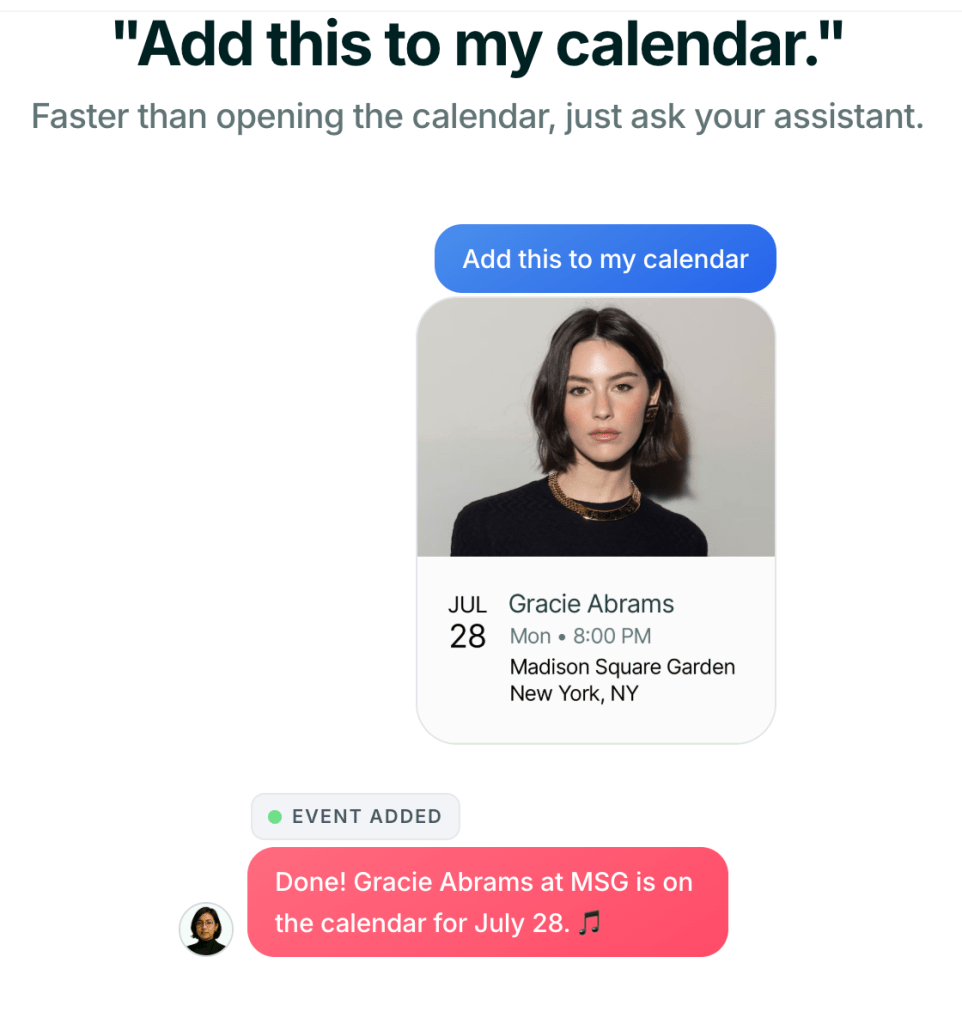
Calendar event reminder for Gracie Abrams concert on July 28 at Madison Square Garden, New York, NY, with a confirmation message.

This works with several types of input:

Photos and Screenshots

If you receive a photo of an event schedule or a screenshot with date and time details, you can forward it to Skej and it will extract the relevant information.

For example, a soccer schedule shared in a group chat or a flyer for a school event can be turned into calendar events instantly.

Emails

Flight confirmations, conference agendas, and invitation emails often contain all the details needed for a calendar event.

By forwarding the email to Skej, the assistant can read the information and add the event to your calendar automatically.

Messages

You can also simply tell Skej to add something to your calendar.

For example:

“Add Emma’s soccer game Saturday at 10am.”

or

“Put Jake’s birthday party on my calendar for June 14th at 2pm.”

Skej will create the event and sync it across your calendars.

Why This Matters for Personal and Family Calendars

While scheduling tools are often associated with work meetings, many people use Skej for personal organization as well.

Family schedules can become surprisingly complex.

Between school activities, sports, birthdays, travel plans, and social events, it’s easy for important dates to slip through the cracks.

Using an assistant to automatically add events helps keep everyone organized without requiring constant manual updates.

It also reduces the chances of forgetting important events.

A Calendar That Works Like an Assistant

The biggest advantage of tools like Skej is that your calendar starts behaving less like a system you have to manage and more like an assistant that helps manage your life.

Instead of constantly opening your calendar to add things manually, you can simply send information to your assistant and let it handle the details.

Over time, this removes dozens of small interruptions from your day.

And when those small tasks disappear, your schedule starts to feel much easier to manage.

Try It Yourself

If you want to see what it feels like to have a calendar assistant handling scheduling and event organization for you, Skej makes it easy to get started.

You can connect your calendars, forward an event, and watch it appear on your schedule automatically.

It’s one of the simplest ways to make your calendar work for you instead of the other way around.

Get started with Skej in minutes

Product

Email AssistantBooking LinkTextingSlack & TeamsFollow-UpsAdd to CalendarSmart Options

Solutions

For InvestorsFor FoundersFor SalesFor RecruitersSwitch from Calendly

For Teams

Internal MeetingsSlack & TeamsSecurity & ComplianceIT Admin ControlsCustom Assistants

Company

CompanyUpdatesBlogSimon BaumerContact

Resources

PricingFAQTermsPrivacyCookiesTrust Center

Get Started

Product

Email AssistantBooking LinkTextingSlack & TeamsFollow-UpsAdd to CalendarSmart Options

Solutions

For InvestorsFor FoundersFor SalesFor RecruitersSwitch from Calendly

For Teams

Internal MeetingsSlack & TeamsSecurity & ComplianceIT Admin ControlsCustom Assistants

Company

CompanyUpdatesBlogSimon BaumerContact

Resources

PricingFAQTermsPrivacyCookiesTrust Center

Get Started

Designed by 3Gen Internet Corporation in New York

Skej
Assistants
Product
Solutions
For Teams
Switch from Calendly
Pricing
← Back to Blog
How to Add Events to Your Calendar Automatically (From Emails, Photos, or Messages)

How to Add Events to Your Calendar Automatically (From Emails, Photos, or Messages)

Justin Canetti•2026-03-16

Calendars are supposed to keep our lives organized. But adding events to them often feels surprisingly manual.

A flight confirmation arrives in your inbox.
A kid’s soccer schedule shows up in a group chat.
A birthday party invitation comes as a photo.
A conference agenda lives inside a PDF.

In most cases, you still have to open your calendar, create an event, copy the date and time, add the location, and save it.

It’s not difficult, but it’s repetitive. And when you’re doing it multiple times a week, those small tasks start to add up.

Fortunately, there’s now a much easier way to handle this.

The New Approach: Let AI Add Events for You

New AI assistants are starting to solve this problem.

Instead of manually entering event details, you can simply forward the information to an assistant and let it add the event automatically.

For example, if someone sends you a screenshot of an event schedule or a photo of a flyer, the assistant can read the information and create the calendar entry for you.

This saves time and removes the small friction that comes with constantly updating your calendar.

How Skej Adds Events to Your Calendar

Skej is designed to act like a personal scheduling assistant, and one of the most useful features is the ability to add events automatically.

Instead of typing everything manually, you can simply send the information to Skej.

Calendar event reminder for Gracie Abrams concert on July 28 at Madison Square Garden, New York, NY, with a confirmation message.

This works with several types of input:

Photos and Screenshots

If you receive a photo of an event schedule or a screenshot with date and time details, you can forward it to Skej and it will extract the relevant information.

For example, a soccer schedule shared in a group chat or a flyer for a school event can be turned into calendar events instantly.

Emails

Flight confirmations, conference agendas, and invitation emails often contain all the details needed for a calendar event.

By forwarding the email to Skej, the assistant can read the information and add the event to your calendar automatically.

Messages

You can also simply tell Skej to add something to your calendar.

For example:

“Add Emma’s soccer game Saturday at 10am.”

or

“Put Jake’s birthday party on my calendar for June 14th at 2pm.”

Skej will create the event and sync it across your calendars.

Why This Matters for Personal and Family Calendars

While scheduling tools are often associated with work meetings, many people use Skej for personal organization as well.

Family schedules can become surprisingly complex.

Between school activities, sports, birthdays, travel plans, and social events, it’s easy for important dates to slip through the cracks.

Using an assistant to automatically add events helps keep everyone organized without requiring constant manual updates.

It also reduces the chances of forgetting important events.

A Calendar That Works Like an Assistant

The biggest advantage of tools like Skej is that your calendar starts behaving less like a system you have to manage and more like an assistant that helps manage your life.

Instead of constantly opening your calendar to add things manually, you can simply send information to your assistant and let it handle the details.

Over time, this removes dozens of small interruptions from your day.

And when those small tasks disappear, your schedule starts to feel much easier to manage.

Try It Yourself

If you want to see what it feels like to have a calendar assistant handling scheduling and event organization for you, Skej makes it easy to get started.

You can connect your calendars, forward an event, and watch it appear on your schedule automatically.

It’s one of the simplest ways to make your calendar work for you instead of the other way around.

Get started with Skej in minutes

Product

Email AssistantBooking LinkTextingSlack & TeamsFollow-UpsAdd to CalendarSmart Options

Solutions

For InvestorsFor FoundersFor SalesFor RecruitersSwitch from Calendly

For Teams

Internal MeetingsSlack & TeamsSecurity & ComplianceIT Admin ControlsCustom Assistants

Company

CompanyUpdatesBlogSimon BaumerContact

Resources

PricingFAQTermsPrivacyCookiesTrust Center

Get Started

Product

Email AssistantBooking LinkTextingSlack & TeamsFollow-UpsAdd to CalendarSmart Options

Solutions

For InvestorsFor FoundersFor SalesFor RecruitersSwitch from Calendly

For Teams

Internal MeetingsSlack & TeamsSecurity & ComplianceIT Admin ControlsCustom Assistants

Company

CompanyUpdatesBlogSimon BaumerContact

Resources

PricingFAQTermsPrivacyCookiesTrust Center

Get Started

Designed by 3Gen Internet Corporation in New York