
Integrating Zoom with Skej lets Skej include a custom Zoom link on all of your meeting invitations.
Connect your Zoom account
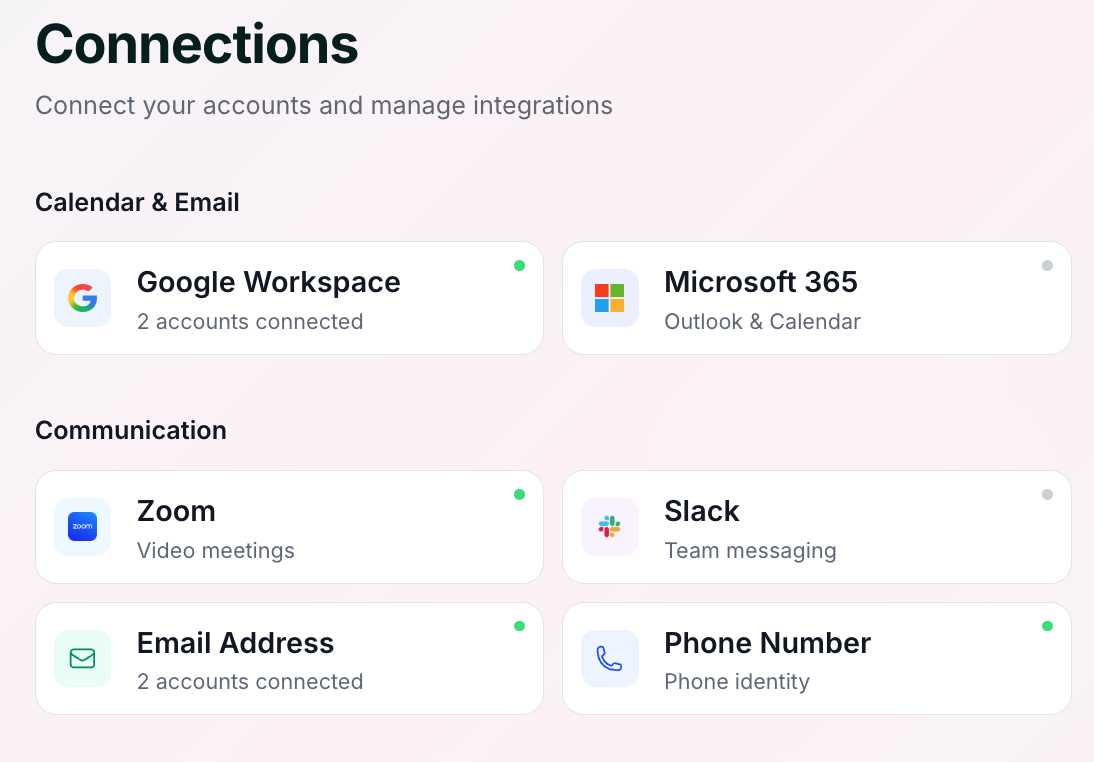
- Navigate to your Connections page.
- Select Zoom and choose the connection option.
- Authenticate using OAuth or email/password credentials with your Zoom account.
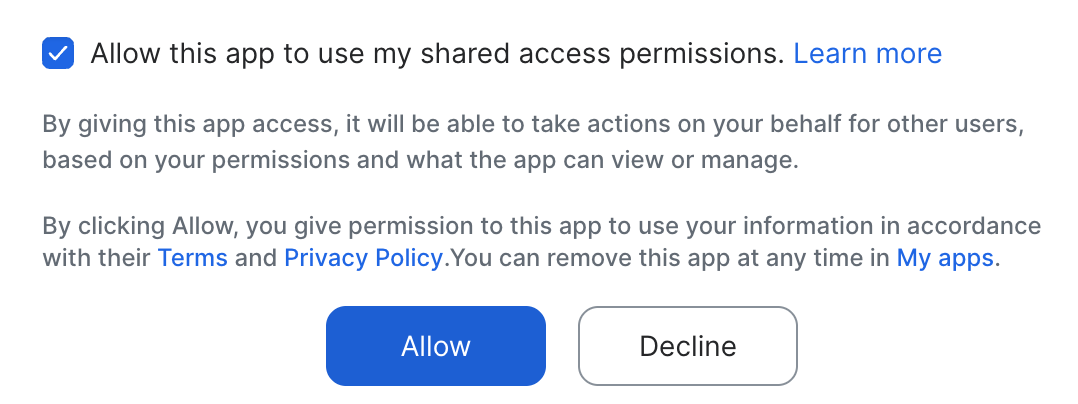
- Review permissions and approve access for the assistant to add your Zoom link to meeting invites.
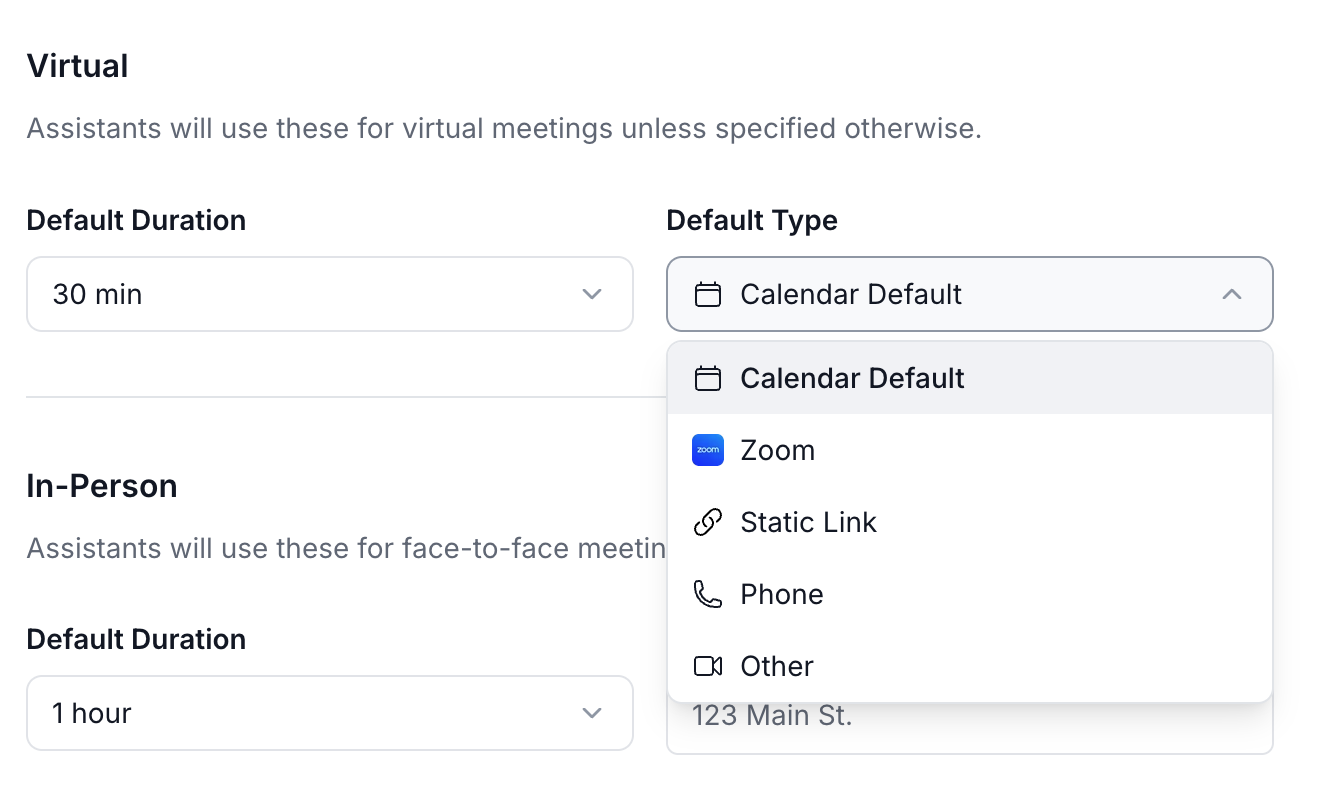
After connecting, you can establish Zoom as your default meeting platform. Access your preferences and choose Zoom from the virtual meetings default type menu.
Disconnect your Zoom account
- Return to your Connections section.
- Click Zoom and select the delete option.
- Confirm the disconnection; your account will be immediately disassociated.